
You've probably seen it happen: someone sets up a Zoom call, and minutes before it starts, an uninvited guest joins — "Otter.ai Notetaker" or "Fireflies Notetaker" sitting silently in the participant list, recording everything. For some people, this is fine. For many others — and in many organisations — it creates immediate friction. This is similar to how students automatically take lecture notes with AI but for meetings.

There's a better way to get AI meeting notes without the awkwardness.
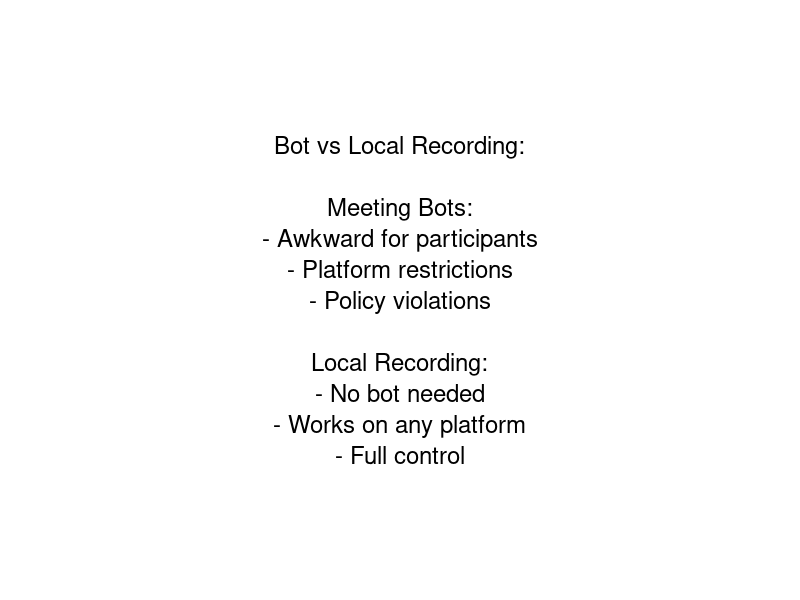
The Problem with Meeting Bots
AI meeting notetaker bots have become common, but they come with real problems:
- They make participants uncomfortable: Not everyone knows what the bot is, who controls it, or where the recording is stored. This changes the dynamic of the meeting.
- They're often against policy: Many organisations, particularly in finance, legal, healthcare, and government, prohibit third-party recording tools joining internal calls.
- They require the other party's consent: In many jurisdictions and workplace contexts, all participants must consent to being recorded. A bot joining without explicit agreement can create legal exposure.
- They only work on specific platforms: Most bots integrate with Zoom, Teams, or Meet — but not all three, and not with other conferencing tools.
- They fail when calls run early: If your meeting starts before the bot joins, or someone declines the bot's request to join, you get nothing.
The Better Approach: Record Locally, Upload After
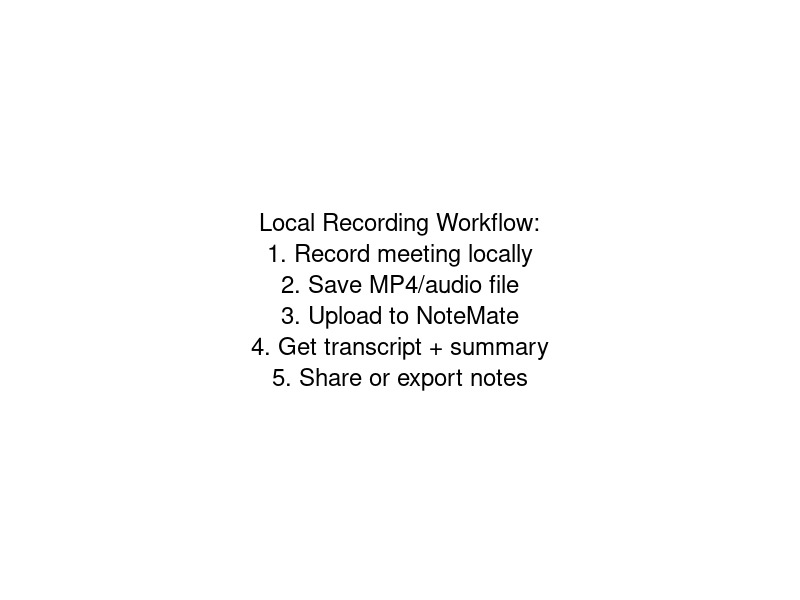
Instead of adding a bot to your call, record the meeting yourself using tools you already have — then upload the recording to an AI notetaker afterwards.
This approach:
- Keeps third-party software out of your call entirely
- Gives you full control over the recording
- Works with any conferencing platform
- Lets you decide after the call which meetings actually need AI notes
How to Record Your Meetings Locally
Zoom
Click Record at the bottom toolbar and choose Record to this computer. The recording saves as an MP4 file automatically when the call ends. You can find it in Documents/Zoom on Mac and Windows.
Microsoft Teams
Click the three-dot menu (More actions) during the call and select Start recording. In Teams, recordings save to SharePoint or OneDrive — download the MP4 before uploading to your AI notetaker.
Google Meet
Click Activities in the bottom right, then Recording. The recording saves to Google Drive as an MP4. Note that this requires a Google Workspace account — personal Gmail accounts cannot record.
Phone or laptop audio recorder
For in-person meetings or calls where you can't use the platform's recording feature, use your phone's voice recorder app (placed on the table) or a system audio recorder on your laptop. This captures everything playing through your speakers without joining any call.
Getting Free AI Meeting Notes with NoteMate
Once you have the recording file, open NoteMate and create a new recording. Upload the file — MP4 from Zoom, M4A from iPhone, any format works — and within minutes you'll have: All part of NoteMate's meeting note features.
- A full transcript of everything said in the meeting
- A structured summary with the main discussion points
- Action items: who said they'd do what, and by when
- Key decisions made during the call
NoteMate's free tier includes 60 minutes of transcription per month — enough to cover a couple of typical 30-minute check-ins or one longer strategy session. If you hit the limit, your existing notes stay accessible and your minutes reset the following month. No credit card required to get started. For meeting-specific guides, see our Zoom recording tutorial and Teams transcription guide.
This Works for Any Meeting Type
Because the upload approach is platform-agnostic, it works across every situation where bots typically fail:
- Client calls: No bot appearing in their call — record with your platform's built-in recorder and upload after
- Interview recordings: HR and recruiting teams often can't use third-party bots due to GDPR concerns — local recording solves this
- Board meetings: High-sensitivity calls where participant comfort matters
- Calls on non-standard platforms: Webex, BlueJeans, Whereby — most bots don't support these; local recording does
- In-person meetings: Phone on the table, upload after
Privacy and Data Considerations
When you upload a recording to NoteMate, it's processed securely and you control the data. Unlike bot services that automatically join and store recordings in their own cloud indefinitely, with NoteMate you choose which meetings to upload, and you can delete recordings at any time.
For teams in regulated industries, this is often the deciding factor — keeping data under your control rather than in a third-party notetaker's cloud infrastructure.
Get Started
If you've been avoiding AI meeting notes because you don't want a bot in your calls, the upload approach removes that barrier entirely. Record with whatever tool you already use, upload to NoteMate, and get structured meeting notes without any of the awkwardness.
Start free at NoteMate — no bot required.