
Automatic lecture notes used to be science fiction. Today, they're a practical reality that thousands of students use every week. Using an AI notetaker like NoteMate, you can record any lecture — in person or online — and receive a full transcript plus structured study notes within minutes of uploading.

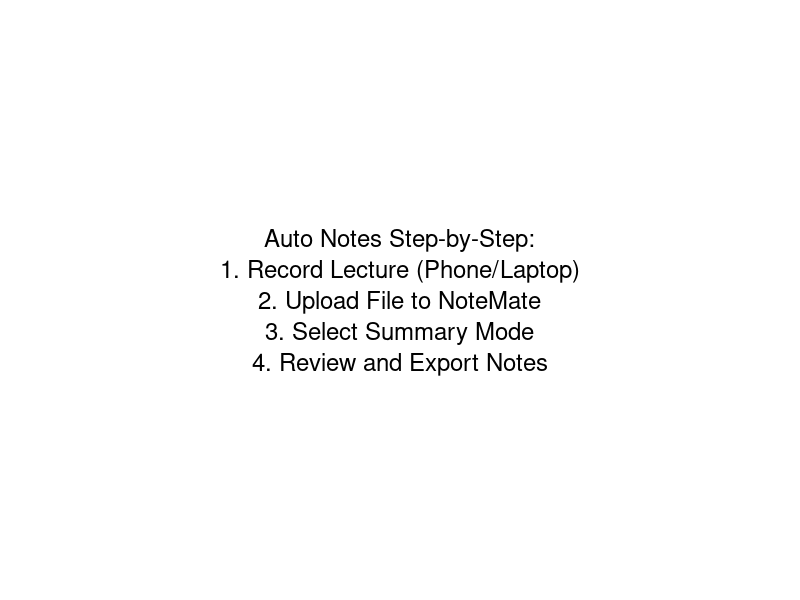
This guide walks through the complete process from recording to revision-ready notes.
Step 1: Record Your Lecture
The first step is capturing the audio. You have several options:
In-person lectures
Use your smartphone's voice memo app. Place your phone on the desk in front of you with the microphone facing the front of the room. Most modern smartphones have excellent microphone quality and will capture clear audio even from the back of a large lecture hall.
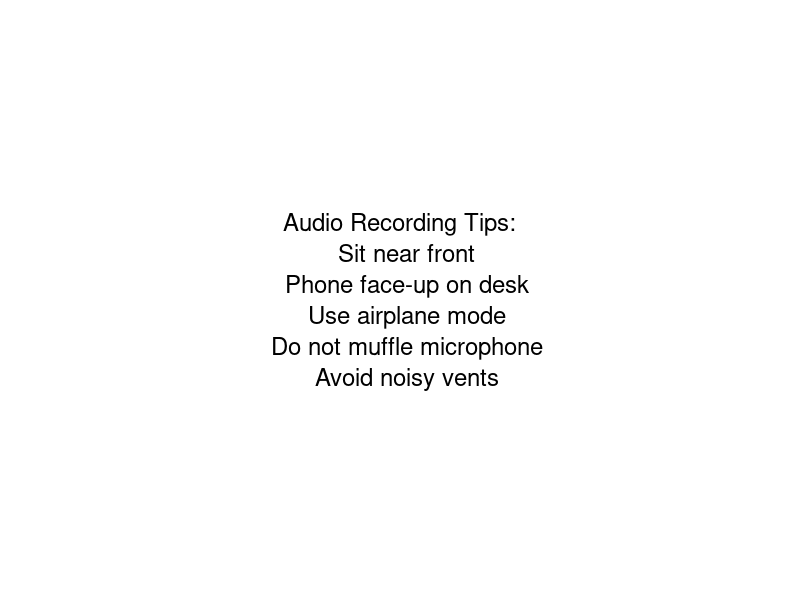
Tips for better recordings:
- Enable aeroplane mode to prevent call interruptions (keep Wi-Fi on if you need internet access)
- Use a dedicated recording app rather than video — audio files are smaller and easier to upload
- Check the recording is actually running before you settle in
- If your lecture hall has poor acoustics, sit closer to the front or near a speaker
Online lectures (Zoom, Teams, Google Meet)
Most video conferencing tools have a built-in record function. In Zoom, click Record at the bottom of the screen. In Teams, use the More actions menu. Save the recording to your local drive as an MP4 or audio file.
Alternatively, use a system audio recording tool to capture whatever is playing through your speakers, which works for any platform.
Step 2: Upload to Your AI Notetaker
Once the lecture is over, open NoteMate in your browser and create a new recording. Upload the audio file — NoteMate accepts MP3, MP4, WAV, M4A, and most common audio and video formats. For more details on supported formats, see our guide to converting lecture recordings.
The file will be processed in the background. For a one-hour lecture, expect processing to take roughly 3–8 minutes depending on file size and current server load.
Step 3: Choose Your Summary Mode
NoteMate offers several summarisation modes. For lecture notes, select Lecture mode, which is specifically designed to extract: This is part of NoteMate's core feature set tailored for students.
- The main topics and subtopics covered
- Key definitions, formulas, and concepts
- Examples and case studies discussed
- Things to follow up on (readings, assignments, exam topics)
If your lecture was more of a seminar discussion, the Notes mode gives a cleaner narrative summary. For recorded team meetings or project sessions, try Actions mode to surface tasks and next steps.
Step 4: Review and Edit
AI transcription is highly accurate but not perfect. Take five minutes to skim the transcript and correct any obvious errors — proper nouns, subject-specific terminology, and names of researchers or authors are the most common sources of mistakes.
You can also edit the summary directly if you want to reorganise sections or add context that the AI missed.
Step 5: Export and Study
Export your notes in the format that works for your study system:
- Markdown: Paste directly into Notion, Obsidian, or Bear
- PDF: Print or save to your tablet for annotation
- Plain text: Copy into any notes app or word processor
Audio Quality Tips That Make a Big Difference
The quality of your AI notes is directly related to the quality of your audio recording. A few small changes make a big difference:
- Distance matters: Being closer to the speaker produces dramatically cleaner audio. If you must sit far back, consider a portable clip-on microphone that connects to your phone.
- Reduce background noise: HVAC systems, busy corridors nearby, and keyboard noise all reduce accuracy. If you can choose your seat, pick one away from air vents and doors.
- Don't muffle the microphone: Keep your phone screen-side up on the desk, not face-down in your bag.
- Check levels before the lecture starts: Record 30 seconds and play it back — you'll immediately know if there's a problem.
Studying from AI Lecture Notes
You now have comprehensive notes from every lecture you've recorded. The key is using them actively:
Within 24 hours of each lecture, read through the AI summary and highlight anything you don't fully understand. These become your priority questions for tutorials or office hours. Before an exam, use the transcript search to revisit specific topics your professor emphasised — signals like "this will be on the exam" or "make sure you understand this" are right there in the transcript.
Students who use AI lecture notes consistently report that they feel less stressed during lectures (because they know nothing is lost) and revise more effectively (because their notes are complete and well-structured).
Getting Started
NoteMate offers 60 free minutes of transcription per month — enough to try it on one full lecture and see the difference for yourself. No bot required, no institutional permission needed. Just record, upload, and study smarter. Start today at note-mate.app or read our Otter.ai alternative comparison to see how we stack up against other tools.