
You've got a lecture recording sitting on your phone or laptop. Maybe it was a complex topic you knew you'd need to revisit. Maybe you couldn't keep up with the pace. Maybe you just wanted a safety net while you focused on understanding rather than writing.

Whatever the reason, converting that recording into usable study notes used to require hours of manual transcription. Now, AI does it in minutes. Here's a practical guide to getting from audio file to revision-ready notes.
What File Formats Work?
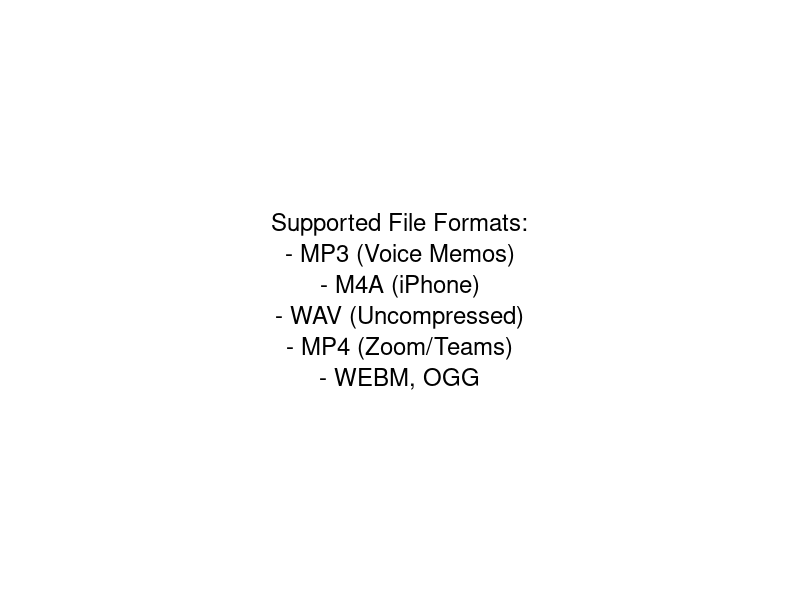
Modern AI transcription tools like NoteMate work with virtually any audio or video format your recording setup might produce:
- MP3: Most voice recorder apps and compressed audio exports
- M4A: iPhone Voice Memos default format
- WAV: Uncompressed audio from some recording apps
- MP4: Zoom, Teams, and Google Meet recordings (video with audio)
- WEBM: Browser-recorded video files
- OGG: Some Android recording apps
If your file is in a format that isn't directly supported, most operating systems have free tools to convert between formats. On Mac, use the built-in QuickTime Player (File > Export). On Windows, use VLC (free) to convert. On mobile, most recording apps let you export in multiple formats.
Step-by-Step: Converting a Recording to Notes
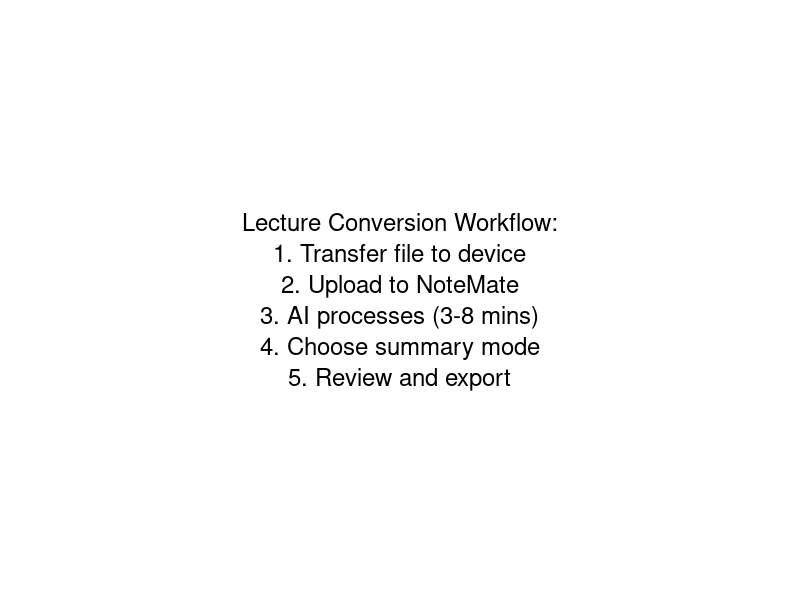
1. Transfer the file to your device
If you recorded on your phone and want to upload from a laptop, transfer via AirDrop (iPhone to Mac), USB cable, or simply email the file to yourself. For Zoom recordings, they're typically saved to your Documents/Zoom folder automatically after the meeting ends.
2. Upload to NoteMate
Open NoteMate in your browser, click New Recording, and upload your file. For a full guide on recording lectures, see our automatic note-taking tutorial. The upload time depends on your internet connection and file size — a one-hour M4A from iPhone Voice Memos is typically 50–100MB.
3. Let the AI process
NoteMate will transcribe the audio using high-accuracy speech recognition, then pass the transcript through its AI summarisation engine. Our lecture-specific features ensure academic content is captured accurately. For a typical one-hour lecture, this takes 3–8 minutes.
4. Choose your summary mode
Select the mode that best fits the content:
- Lecture: For academic lectures — surfaces concepts, definitions, examples
- Notes: Clean narrative summary — good for seminars and discussions
- Actions: For recorded meetings with tasks and decisions
- Brainstorm: For creative or planning sessions
5. Review and export
Skim the transcript for any errors (proper nouns and technical terms are most likely to need correction), then export in your preferred format.
What the Output Looks Like
For a typical 60-minute lecture on, say, macroeconomics, you'd receive:
- A full verbatim transcript (~8,000–12,000 words) with timestamps
- A structured summary (600–1,000 words) organised by topic
- Key definitions and concepts in a scannable format
- Examples and case studies mentioned during the lecture
- Action items — readings recommended, assignments mentioned, exam preparation notes
The transcript is fully searchable, so if you remember your professor mentioning a specific researcher or date, you can find the exact quote instantly.
Getting Better Results from Your Recordings
AI transcription accuracy is directly related to audio quality. A few recording habits make a significant difference:
- Sit closer to the front when possible — the signal-to-noise ratio improves dramatically
- Keep your phone face-up on the desk, not in your bag or pocket
- Use a clip-on lapel microphone (£10–20 on Amazon) if you regularly record in noisy environments
- Enable aeroplane mode during recording to prevent interruptions
- Check before you start — record 30 seconds, play it back, confirm the audio is clear
Works with Any Platform
Because NoteMate uses file upload rather than live integration, it works with content from any source:
- Zoom cloud or local recordings
- Microsoft Teams recordings
- Google Meet recordings
- iPhone Voice Memos
- Android voice recorder apps
- Dedicated recording hardware
- Lecture capture systems (Panopto, Echo360 — download the video and upload)
Start Converting Your Lecture Recordings
If you have a backlog of lecture recordings sitting on your phone, this is the fastest way to turn them into usable study material before your next exam. NoteMate's free tier gives you 60 minutes of transcription to try it out — that's a full lecture, converted to notes, at no cost.